

Why Does My WiFi Keep Disconnecting? 6 Real Fixes

Quick Answers: WiFi Disconnection FAQs
Q1: Why does my WiFi keep disconnecting every few minutes? A: This is usually caused by network channel congestion from neighbors, having too many connected devices, or your device’s power-saving mode turning off the network adapter.
Q2: What is the correct way to restart a router? A: Don’t just unplug it for 10 seconds. Unplug both your router and modem for a full 60 seconds to completely clear the temporary memory and discharge the capacitors before plugging them back in.
Q3: What is the difference between 2.4GHz and 5GHz WiFi bands? A: 5GHz offers faster speeds but shorter range, while 2.4GHz is slower but covers longer distances and passes through thick walls much better.
Q4: Can connecting too many devices cause WiFi to drop? A: Yes. Budget routers struggle to handle more than 15-20 devices simultaneously. When overloaded, the router’s processing capacity drops, causing intermittent disconnections.
Q5: Where is the best place to put a WiFi router? A: Place your router in a central location of your home, elevated off the floor, and in the open. Avoid putting it in corners, inside cabinets, or directly behind TVs as these block radio waves.
Why Does My WiFi Keep Disconnecting — Before You Touch Anything
People jump straight to fixes without understanding what’s actually happening, and then they fix the wrong thing.
Your router is juggling a lot. Every device in your home that’s connected to WiFi — phones, laptops, TVs, smart speakers, security cameras, whatever — is maintaining a constant conversation with it. The router is managing all of those connections simultaneously, routing traffic between them, and keeping a stable link to your ISP. That’s a genuinely complicated job for a small box that costs $30-80.
When any part of that breaks down — too much interference, too many devices, outdated software, bad placement, power issues — the connection drops. And it almost never tells you why. You just get that spinning circle or the “no internet” message and you’re left guessing.
Here’s the thing though. After going through this myself and helping a few people troubleshoot theirs, the cause is almost always one of six things. And nearly all of them cost nothing to fix.
Fix 1 — You’ve Been Restarting Your Router Wrong This Whole Time
Everyone restarts the router. Barely anyone does it in a way that actually works.
Yanking the cable and plugging it back in after ten seconds — that’s not a restart, that’s a nap. The router’s memory hasn’t cleared. Whatever state it was in before you unplugged it, it wakes up right back in that same state. The problem that caused the drop is still sitting there.
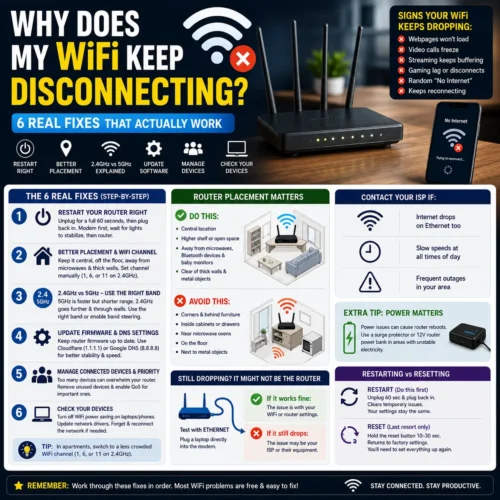
What actually works: pull the power cable, leave it unplugged for a full 60 seconds, then plug it back in. That sounds like nothing but it makes a real difference. The router’s capacitors fully discharge, the temporary memory completely clears, and it starts fresh rather than picking up mid-mess.
If you have a separate modem — that other box your ISP gave you — unplug that too. When you plug back in, modem first. Wait until its lights stabilize. Then plug the router in. This order matters more than most people realize.
I know this feels too simple. But I’ve seen this single fix resolve WiFi dropping that people had been living with for months. Routers accumulate connection data over time, processes get stuck, things build up. A proper restart clears it all out. If you haven’t done this in weeks, do it before anything else.
Fix 2 — Where You Put the Router Matters More Than Anything Else
Nobody thinks about this until someone points it out, and then it seems obvious.
Most routers end up wherever the installation engineer put them on the day the internet got set up. That location was chosen because that’s where the cable comes into the house — not because it’s good for signal coverage. It’s usually a corner of a room, near the floor, sometimes inside a cabinet or behind a TV unit. These are all genuinely terrible spots for a WiFi router.
WiFi signal is a radio wave. It goes in all directions from the router but loses strength with distance and gets blocked by physical objects. The further your devices are from the router, and the more walls, floors, and furniture between them, the weaker the signal. Weak signal means unstable connection. Unstable connection means drops.
A few specific things that kill WiFi signal that most people don’t know about:
Microwave ovens run on the same 2.4GHz frequency as one of your WiFi bands. When someone runs the microwave, it genuinely disrupts 2.4GHz WiFi signals. If your connection drops specifically around mealtimes, this might be exactly why.
Thick walls — concrete, brick, dense plaster — absorb radio waves significantly. A router on one side of a thick wall can go from strong signal to almost nothing on the other side. One wall.
Neighbors’ WiFi networks cause channel congestion. In apartments especially, you can be surrounded by 15-20 other WiFi networks all competing for the same frequency channels. This is one of the most common reasons internet keeps disconnecting in cities.
Move the router somewhere central, off the floor, in the open. If it’s been sitting in a corner cabinet for two years, moving it to a shelf in the middle of the house might feel dramatic but the improvement is usually immediate and obvious.
For the channel congestion problem — go to 192.168.1.1 or 192.168.0.1 in your browser, log into your router’s admin panel, and look for WiFi channel settings. Switch it from automatic to a manually chosen channel. On the 2.4GHz band, channels 1, 6, and 11 don’t overlap with each other — pick whichever one your neighbors are using least.
Fix 3 — The 2.4GHz and 5GHz Thing Nobody Explained to You
Your router is probably broadcasting two separate WiFi networks at the same time. One runs on 2.4GHz, one on 5GHz. They often have the same name, and your devices jump between them automatically.
Here’s where it gets annoying. 5GHz is faster but has shorter range. 2.4GHz is slower but goes further and gets through walls better. So when you’re sitting next to the router, everything connects to 5GHz and feels great. When you walk to another room, that 5GHz signal weakens — but your device doesn’t cleanly switch to 2.4GHz. It holds onto the weakening 5GHz signal until it completely collapses. That collapse is the disconnect you experience.
It’s not your device being dumb. It’s just how the handoff between bands works on most budget routers.
Easiest fix for devices that don’t move — TVs, desktop computers, games consoles — connect them manually to whichever band suits their location. Right next to the router, use 5GHz. In another room, connect specifically to the 2.4GHz network. Forcing the choice removes the problem.
For phones and laptops that move around, check if your router has a “band steering” option in its settings. It helps manage the switching more smoothly. Not all routers have it, but if yours does, turn it on.
And if you’ve got dead zones in parts of your home where signal just doesn’t reach well — a WiFi extender or a mesh system node in that area genuinely solves it rather than just masking the problem temporarily.
Fix 4 — Your Router’s Software Is Probably Years Out of Date
This is the one that surprises people most because it sounds like a tech-person problem. It isn’t.
Router manufacturers push out software updates fairly regularly. These updates fix bugs, patch security holes, improve how the router handles lots of connections simultaneously. An older router running outdated firmware can develop stability problems that didn’t exist when it was new — because those problems were known bugs that got fixed in updates nobody installed.
Log into your router’s admin panel — same address as before, 192.168.1.1 or 192.168.0.1 — and look for a Firmware Update section. If there’s an update available, run it. The router restarts during the process. Check afterwards whether the drops have improved.
While you’re in there, look at the DNS settings. Your router is almost certainly using your ISP’s DNS servers by default. These are often slow and occasionally unreliable. Switching to Cloudflare’s 1.1.1.1 or Google’s 8.8.8.8 is completely free, takes two minutes, and often improves both stability and page load speeds. A lot of people notice the difference immediately.
Fix 5 — Your Router Is Drowning in Connected Devices
Count the devices connected to your home WiFi right now. Actually count them — phones, laptops, tablets, smart TVs, streaming sticks, gaming consoles, smart speakers, smart bulbs, security cameras, robot vacuums, thermostats. In a typical household in 2026, that number is usually somewhere between 15 and 30.
Every single one of those devices is maintaining a connection to your router even when you’re not actively using it. Each one takes up a slice of the router’s processing capacity. Budget routers — the ones most people have — handle five or ten devices without much trouble. Push them to twenty or thirty and they start struggling. Connections become unstable. Things drop.
Beyond just the number of devices, what they’re doing matters too. Someone streaming 4K video at the same time as someone else on a video call at the same time as a game update downloading in the background — that combination can saturate even a decent router and push weaker connections over the edge.
Go into your router’s connected devices list and kick off anything that shouldn’t be there. Old devices that don’t live in the house anymore, smart home gadgets you don’t actually use, anything that’s connected by habit rather than necessity. Also look for a QoS setting — Quality of Service — which lets you tell the router which devices matter most. Set your work laptop as high priority and the smart fridge as low, and the router will protect your important connections when things get congested.
If you work from home and this keeps being a problem, our full guide on how to keep your WiFi router on during a power outage covers router reliability from a different angle — including what to do when the problem is power rather than signal.
Fix 6 — It Might Not Be the Router At All
When WiFi drops, everyone blames the router. Sometimes it isn’t the router.
Laptops and phones have power saving features that, in trying to extend battery life, will literally turn off the WiFi adapter when the device isn’t actively transferring data. Then it turns back on when you try to do something. From the user side, this looks identical to a WiFi drop — connection gone, comes back after a few seconds, repeat.
On Windows laptops this is incredibly common. Go to Device Manager, find your network adapter in the list, right-click it, go to Properties, then Power Management, and uncheck the box that says “Allow the computer to turn off this device to save power.” That’s it. Done. A shocking number of people have fixed months of intermittent WiFi drops with this one checkbox.
On Android, dig into your WiFi settings and look for anything mentioning power saving mode or WiFi sleep settings. Make sure WiFi is set to stay on always rather than turning off when the screen locks.
iPhones handle this better than Android generally, but if an iPhone keeps dropping a specific network, try forgetting it completely — Settings, WiFi, tap the network name, Forget This Network — then reconnect from scratch. Sometimes the saved connection data gets corrupted and a fresh connection sorts it.
Also worth a quick check on Windows: after big system updates, network adapter drivers occasionally get replaced with generic ones that don’t work as well as the manufacturer’s drivers. Device Manager, right-click your network adapter, Update Driver. Simple but occasionally solves drops that started right after a Windows update.
When None of This Works — It Might Be Your ISP
You’ve tried everything above and WiFi keeps dropping anyway. At some point you have to consider that the problem isn’t inside your house.
Your ISP’s own equipment can cause exactly the same symptoms as home hardware problems. Congestion on their network, a degraded cable connection at the street junction box, intermittent faults at the local exchange — all of these cause disconnections and slow speeds that look like your router’s fault.
Easy test: grab a laptop and plug it directly into your modem with an ethernet cable, completely bypassing the router. If the connection drops on ethernet too, the problem is coming from outside. Call your ISP and specifically ask them to run a line quality test, not just a speed test. Technical support has access to line diagnostic tools that customer service doesn’t — if your first call goes to a call center, ask to be escalated.
Also check your ISP’s website or their social media for known outages in your area before spending an hour troubleshooting. Sometimes the answer is just: they’re having a problem and it’ll be fixed in a few hours.
What About Power Instability Causing WiFi Drops?
One thing most troubleshooting guides completely skip — and this one caught me off guard when I first learned about it.
In areas where electricity isn’t perfectly stable — voltage spikes, brief brownouts, load shedding — routers can reboot without warning. From every device on the network, this looks exactly like a WiFi disconnection. Same symptoms, completely different cause.
If your router seems to restart itself rather than just losing signal — lights go off and come back on, devices all disconnect simultaneously — power instability is probably the actual issue. A dedicated 12V router power bank sits between the wall and your router and provides stable, clean power even when the incoming electricity fluctuates. We covered exactly how to set one up in the router power outage guide if this sounds like your situation.
And in general, having proper charging solutions for your devices means you’re not scrambling during unstable power periods. The OnePlus 65W Warp Charger gets a phone from nearly dead to usable charge in under 20 minutes, which matters when you can’t predict when power will be stable long enough to charge slowly. For staying connected without wall power, something like the M10 Wireless Earbuds or Pro 2 Wireless Earbuds gives you hours of audio for calls and communication without needing to be plugged in. If you prefer over-ear for longer sessions, the P9 Wireless Headphones hold their charge well.
Restarting vs Resetting — These Are Not the Same Thing
Quick clarification because people mix these up constantly and the difference matters a lot.
Restarting is what Fix 1 covers — unplug, wait, plug back in. Clears temporary memory, refreshes connections, fixes a lot of problems. Your settings stay exactly as they were.
Resetting is completely different. That little pinhole button on the back of your router — holding it for 10-30 seconds wipes everything back to factory defaults. Your WiFi name gone. Your password gone. Any custom settings you’ve ever made, gone. You have to set the whole thing up from scratch, including entering your ISP login credentials which a lot of people don’t have written down anywhere.
Don’t reset unless you have a specific reason to. It doesn’t fix most WiFi problems and creates a whole new set of tasks. Restart first, try all six fixes, contact your ISP if needed. Reset is an absolute last resort.
Related Reading From FusionsHub
- How to Keep Your WiFi Router On During a Power Outage
- Fast Charging Battery Damage — Is Your Charger Safe?
- Original vs Fake Charger — Real Danger Buying Guide
- Why Is My Phone Charging Slow?
- iPhone 16 Charging Issues
- Best Budget Desk Setup Ideas 2026
- Smartwatch Battery Life Tips — 7 Hacks to Save Power
- ANC vs Battery Life — The Truth
People Also Ask
Why does my WiFi keep disconnecting every few minutes? Almost always one of three things: the router needs a proper restart (60 seconds unplugged, not 10), your laptop or phone’s power saving settings are switching the WiFi adapter off between data transfers, or channel congestion from neighboring networks is causing instability. Start with Fix 1, then Fix 6, then Fix 2 — that order catches the most common causes of the every-few-minutes pattern.
Why does my WiFi disconnect when I walk to another room? Your device is probably holding onto a weakening 5GHz signal rather than switching to the more stable 2.4GHz signal as you move away from the router. Fix 3 covers exactly why this happens and how to stop it — either by manually connecting devices to the right band or enabling band steering in your router settings.
Why does my WiFi keep disconnecting on my phone but not my laptop? Phones tend to have more aggressive power saving that cuts WiFi between active uses. Also check whether your phone and laptop are on different WiFi bands — a phone on 5GHz in a weak signal area drops more than a laptop on 2.4GHz in the same spot. Fix 6 covers the phone-specific settings that cause this.
Can too many devices cause WiFi to disconnect? Yes, genuinely. Budget routers hit their connection limits faster than most people expect. When too many devices are connected and actively doing things simultaneously, the router gets overwhelmed and weaker connections drop first. Fix 5 covers how to manage this without buying new hardware.
Why does my WiFi drop during video calls specifically? Video calls demand sustained, consistent bandwidth rather than short bursts — which exposes instability that casual browsing hides. Usually caused by channel congestion or the router struggling under device load during peak usage times. Setting up QoS to prioritize your device during calls, and switching to a manually chosen WiFi channel, are the most effective fixes here.
Should I restart my router every day? Not necessarily every day, but a weekly restart is genuinely worth doing. Routers accumulate connection data and occasionally get processes stuck over time. A weekly proper restart keeps things clean. Some routers let you schedule automatic restarts — setting one for 3am is painless and most people never notice it happening.
Why does my WiFi disconnect at night? Two likely reasons. Evenings are peak internet usage hours — lots of people home streaming and browsing — which strains ISP infrastructure and can cause instability. Or your router has a scheduled maintenance window running overnight. Check the router admin panel for scheduled tasks. If it’s ISP congestion, contacting them during off-peak hours and describing the pattern gets better results than a general support call.
Dropping WiFi is the kind of problem that’s easy to just live with until it costs you something real. The fixes here solve it for most home setups — work through them in order and you’ll almost certainly find the answer before you run out of options.
Why Does My WiFi Keep Disconnecting — Before You Touch Anything
People jump straight to fixes without understanding what’s actually happening, and then they fix the wrong thing.
Your router is juggling a lot. Every device in your home that’s connected to WiFi — phones, laptops, TVs, smart speakers, security cameras, whatever — is maintaining a constant conversation with it. The router is managing all of those connections simultaneously, routing traffic between them, and keeping a stable link to your ISP. That’s a genuinely complicated job for a small box that costs $30-80.
When any part of that breaks down — too much interference, too many devices, outdated software, bad placement, power issues — the connection drops. And it almost never tells you why. You just get that spinning circle or the “no internet” message and you’re left guessing.
Here’s the thing though. After going through this myself and helping a few people troubleshoot theirs, the cause is almost always one of six things. And nearly all of them cost nothing to fix.
Fix 1 — You’ve Been Restarting Your Router Wrong This Whole Time
Everyone restarts the router. Barely anyone does it in a way that actually works.
Yanking the cable and plugging it back in after ten seconds — that’s not a restart, that’s a nap. The router’s memory hasn’t cleared. Whatever state it was in before you unplugged it, it wakes up right back in that same state. The problem that caused the drop is still sitting there.
What actually works: pull the power cable, leave it unplugged for a full 60 seconds, then plug it back in. That sounds like nothing but it makes a real difference. The router’s capacitors fully discharge, the temporary memory completely clears, and it starts fresh rather than picking up mid-mess.
If you have a separate modem — that other box your ISP gave you — unplug that too. When you plug back in, modem first. Wait until its lights stabilize. Then plug the router in. This order matters more than most people realize.
I know this feels too simple. But I’ve seen this single fix resolve WiFi dropping that people had been living with for months. Routers accumulate connection data over time, processes get stuck, things build up. A proper restart clears it all out. If you haven’t done this in weeks, do it before anything else.
Fix 2 — Where You Put the Router Matters More Than Anything Else
Nobody thinks about this until someone points it out, and then it seems obvious.
Most routers end up wherever the installation engineer put them on the day the internet got set up. That location was chosen because that’s where the cable comes into the house — not because it’s good for signal coverage. It’s usually a corner of a room, near the floor, sometimes inside a cabinet or behind a TV unit. These are all genuinely terrible spots for a WiFi router.
WiFi signal is a radio wave. It goes in all directions from the router but loses strength with distance and gets blocked by physical objects. The further your devices are from the router, and the more walls, floors, and furniture between them, the weaker the signal. Weak signal means unstable connection. Unstable connection means drops.
A few specific things that kill WiFi signal that most people don’t know about:
Microwave ovens run on the same 2.4GHz frequency as one of your WiFi bands. When someone runs the microwave, it genuinely disrupts 2.4GHz WiFi signals. If your connection drops specifically around mealtimes, this might be exactly why.
Thick walls — concrete, brick, dense plaster — absorb radio waves significantly. A router on one side of a thick wall can go from strong signal to almost nothing on the other side. One wall.
Neighbors’ WiFi networks cause channel congestion. In apartments especially, you can be surrounded by 15-20 other WiFi networks all competing for the same frequency channels. This is one of the most common reasons internet keeps disconnecting in cities.
Move the router somewhere central, off the floor, in the open. If it’s been sitting in a corner cabinet for two years, moving it to a shelf in the middle of the house might feel dramatic but the improvement is usually immediate and obvious.
For the channel congestion problem — go to 192.168.1.1 or 192.168.0.1 in your browser, log into your router’s admin panel, and look for WiFi channel settings. Switch it from automatic to a manually chosen channel. On the 2.4GHz band, channels 1, 6, and 11 don’t overlap with each other — pick whichever one your neighbors are using least.
Fix 3 — The 2.4GHz and 5GHz Thing Nobody Explained to You
Your router is probably broadcasting two separate WiFi networks at the same time. One runs on 2.4GHz, one on 5GHz. They often have the same name, and your devices jump between them automatically.
Here’s where it gets annoying. 5GHz is faster but has shorter range. 2.4GHz is slower but goes further and gets through walls better. So when you’re sitting next to the router, everything connects to 5GHz and feels great. When you walk to another room, that 5GHz signal weakens — but your device doesn’t cleanly switch to 2.4GHz. It holds onto the weakening 5GHz signal until it completely collapses. That collapse is the disconnect you experience.
It’s not your device being dumb. It’s just how the handoff between bands works on most budget routers.
Easiest fix for devices that don’t move — TVs, desktop computers, games consoles — connect them manually to whichever band suits their location. Right next to the router, use 5GHz. In another room, connect specifically to the 2.4GHz network. Forcing the choice removes the problem.
For phones and laptops that move around, check if your router has a “band steering” option in its settings. It helps manage the switching more smoothly. Not all routers have it, but if yours does, turn it on.
And if you’ve got dead zones in parts of your home where signal just doesn’t reach well — a WiFi extender or a mesh system node in that area genuinely solves it rather than just masking the problem temporarily.
Fix 4 — Your Router’s Software Is Probably Years Out of Date
This is the one that surprises people most because it sounds like a tech-person problem. It isn’t.
Router manufacturers push out software updates fairly regularly. These updates fix bugs, patch security holes, improve how the router handles lots of connections simultaneously. An older router running outdated firmware can develop stability problems that didn’t exist when it was new — because those problems were known bugs that got fixed in updates nobody installed.
Log into your router’s admin panel — same address as before, 192.168.1.1 or 192.168.0.1 — and look for a Firmware Update section. If there’s an update available, run it. The router restarts during the process. Check afterwards whether the drops have improved.
While you’re in there, look at the DNS settings. Your router is almost certainly using your ISP’s DNS servers by default. These are often slow and occasionally unreliable. Switching to Cloudflare’s 1.1.1.1 or Google’s 8.8.8.8 is completely free, takes two minutes, and often improves both stability and page load speeds. A lot of people notice the difference immediately.
Fix 5 — Your Router Is Drowning in Connected Devices
Count the devices connected to your home WiFi right now. Actually count them — phones, laptops, tablets, smart TVs, streaming sticks, gaming consoles, smart speakers, smart bulbs, security cameras, robot vacuums, thermostats. In a typical household in 2026, that number is usually somewhere between 15 and 30.
Every single one of those devices is maintaining a connection to your router even when you’re not actively using it. Each one takes up a slice of the router’s processing capacity. Budget routers — the ones most people have — handle five or ten devices without much trouble. Push them to twenty or thirty and they start struggling. Connections become unstable. Things drop.
Beyond just the number of devices, what they’re doing matters too. Someone streaming 4K video at the same time as someone else on a video call at the same time as a game update downloading in the background — that combination can saturate even a decent router and push weaker connections over the edge.
Go into your router’s connected devices list and kick off anything that shouldn’t be there. Old devices that don’t live in the house anymore, smart home gadgets you don’t actually use, anything that’s connected by habit rather than necessity. Also look for a QoS setting — Quality of Service — which lets you tell the router which devices matter most. Set your work laptop as high priority and the smart fridge as low, and the router will protect your important connections when things get congested.
If you work from home and this keeps being a problem, our full guide on how to keep your WiFi router on during a power outage covers router reliability from a different angle — including what to do when the problem is power rather than signal.
Fix 6 — It Might Not Be the Router At All
When WiFi drops, everyone blames the router. Sometimes it isn’t the router.
Laptops and phones have power saving features that, in trying to extend battery life, will literally turn off the WiFi adapter when the device isn’t actively transferring data. Then it turns back on when you try to do something. From the user side, this looks identical to a WiFi drop — connection gone, comes back after a few seconds, repeat.
On Windows laptops this is incredibly common. Go to Device Manager, find your network adapter in the list, right-click it, go to Properties, then Power Management, and uncheck the box that says “Allow the computer to turn off this device to save power.” That’s it. Done. A shocking number of people have fixed months of intermittent WiFi drops with this one checkbox.
On Android, dig into your WiFi settings and look for anything mentioning power saving mode or WiFi sleep settings. Make sure WiFi is set to stay on always rather than turning off when the screen locks.
iPhones handle this better than Android generally, but if an iPhone keeps dropping a specific network, try forgetting it completely — Settings, WiFi, tap the network name, Forget This Network — then reconnect from scratch. Sometimes the saved connection data gets corrupted and a fresh connection sorts it.
Also worth a quick check on Windows: after big system updates, network adapter drivers occasionally get replaced with generic ones that don’t work as well as the manufacturer’s drivers. Device Manager, right-click your network adapter, Update Driver. Simple but occasionally solves drops that started right after a Windows update.
When None of This Works — It Might Be Your ISP
You’ve tried everything above and WiFi keeps dropping anyway. At some point you have to consider that the problem isn’t inside your house.
Your ISP’s own equipment can cause exactly the same symptoms as home hardware problems. Congestion on their network, a degraded cable connection at the street junction box, intermittent faults at the local exchange — all of these cause disconnections and slow speeds that look like your router’s fault.
Easy test: grab a laptop and plug it directly into your modem with an ethernet cable, completely bypassing the router. If the connection drops on ethernet too, the problem is coming from outside. Call your ISP and specifically ask them to run a line quality test, not just a speed test. Technical support has access to line diagnostic tools that customer service doesn’t — if your first call goes to a call center, ask to be escalated.
Also check your ISP’s website or their social media for known outages in your area before spending an hour troubleshooting. Sometimes the answer is just: they’re having a problem and it’ll be fixed in a few hours.
What About Power Instability Causing WiFi Drops?
One thing most troubleshooting guides completely skip — and this one caught me off guard when I first learned about it.
In areas where electricity isn’t perfectly stable — voltage spikes, brief brownouts, load shedding — routers can reboot without warning. From every device on the network, this looks exactly like a WiFi disconnection. Same symptoms, completely different cause.
If your router seems to restart itself rather than just losing signal — lights go off and come back on, devices all disconnect simultaneously — power instability is probably the actual issue. A dedicated 12V router power bank sits between the wall and your router and provides stable, clean power even when the incoming electricity fluctuates. We covered exactly how to set one up in the router power outage guide if this sounds like your situation.
And in general, having proper charging solutions for your devices means you’re not scrambling during unstable power periods. The OnePlus 65W Warp Charger gets a phone from nearly dead to usable charge in under 20 minutes, which matters when you can’t predict when power will be stable long enough to charge slowly. For staying connected without wall power, something like the M10 Wireless Earbuds or Pro 2 Wireless Earbuds gives you hours of audio for calls and communication without needing to be plugged in. If you prefer over-ear for longer sessions, the P9 Wireless Headphones hold their charge well.
Restarting vs Resetting — These Are Not the Same Thing
Quick clarification because people mix these up constantly and the difference matters a lot.
Restarting is what Fix 1 covers — unplug, wait, plug back in. Clears temporary memory, refreshes connections, fixes a lot of problems. Your settings stay exactly as they were.
Resetting is completely different. That little pinhole button on the back of your router — holding it for 10-30 seconds wipes everything back to factory defaults. Your WiFi name gone. Your password gone. Any custom settings you’ve ever made, gone. You have to set the whole thing up from scratch, including entering your ISP login credentials which a lot of people don’t have written down anywhere.
Don’t reset unless you have a specific reason to. It doesn’t fix most WiFi problems and creates a whole new set of tasks. Restart first, try all six fixes, contact your ISP if needed. Reset is an absolute last resort.
Related Reading From FusionsHub
- How to Keep Your WiFi Router On During a Power Outage
- Fast Charging Battery Damage — Is Your Charger Safe?
- Original vs Fake Charger — Real Danger Buying Guide
- Why Is My Phone Charging Slow?
- iPhone 16 Charging Issues
- Best Budget Desk Setup Ideas 2026
- Smartwatch Battery Life Tips — 7 Hacks to Save Power
- ANC vs Battery Life — The Truth
People Also Ask
Why does my WiFi keep disconnecting every few minutes? Almost always one of three things: the router needs a proper restart (60 seconds unplugged, not 10), your laptop or phone’s power saving settings are switching the WiFi adapter off between data transfers, or channel congestion from neighboring networks is causing instability. Start with Fix 1, then Fix 6, then Fix 2 — that order catches the most common causes of the every-few-minutes pattern.
Why does my WiFi disconnect when I walk to another room? Your device is probably holding onto a weakening 5GHz signal rather than switching to the more stable 2.4GHz signal as you move away from the router. Fix 3 covers exactly why this happens and how to stop it — either by manually connecting devices to the right band or enabling band steering in your router settings.
Why does my WiFi keep disconnecting on my phone but not my laptop? Phones tend to have more aggressive power saving that cuts WiFi between active uses. Also check whether your phone and laptop are on different WiFi bands — a phone on 5GHz in a weak signal area drops more than a laptop on 2.4GHz in the same spot. Fix 6 covers the phone-specific settings that cause this.
Can too many devices cause WiFi to disconnect? Yes, genuinely. Budget routers hit their connection limits faster than most people expect. When too many devices are connected and actively doing things simultaneously, the router gets overwhelmed and weaker connections drop first. Fix 5 covers how to manage this without buying new hardware.
Why does my WiFi drop during video calls specifically? Video calls demand sustained, consistent bandwidth rather than short bursts — which exposes instability that casual browsing hides. Usually caused by channel congestion or the router struggling under device load during peak usage times. Setting up QoS to prioritize your device during calls, and switching to a manually chosen WiFi channel, are the most effective fixes here.
Should I restart my router every day? Not necessarily every day, but a weekly restart is genuinely worth doing. Routers accumulate connection data and occasionally get processes stuck over time. A weekly proper restart keeps things clean. Some routers let you schedule automatic restarts — setting one for 3am is painless and most people never notice it happening.
Why does my WiFi disconnect at night? Two likely reasons. Evenings are peak internet usage hours — lots of people home streaming and browsing — which strains ISP infrastructure and can cause instability. Or your router has a scheduled maintenance window running overnight. Check the router admin panel for scheduled tasks. If it’s ISP congestion, contacting them during off-peak hours and describing the pattern gets better results than a general support call.
Dropping WiFi is the kind of problem that’s easy to just live with until it costs you something real. The fixes here solve it for most home setups — work through them in order and you’ll almost certainly find the answer before you run out of options.