

WiFi Connected But No Internet — 10 Fixes That Actually Work

Public networks (like at Starbucks, hotels, or airports) usually require you to sign in through a "captive portal" page before they actually give you internet access. Even if your phone connects to the network hardware successfully, it won't route data until you accept their terms or log in. If the login screen doesn't pop up automatically, open your phone's browser and try loading a basic website like example.com to force the authentication page to appear.
This happens when your network is experiencing a partial DNS failure. Apps like WhatsApp, Spotify, or Discord often bypass the standard DNS directory because they hardcode direct IP routes to their servers. Your web browser, however, relies entirely on your DNS provider to translate website names. If your browser is dead but apps are working, it’s a definitive sign that you need to flush your DNS cache or switch over to a public DNS like Cloudflare (1.1.1.1).
Yes, absolutely. If your router’s power adapter is failing, or if the wall outlet experiences minor voltage fluctuations, the router might stay powered on but its internal modem link will crash. This is incredibly common during brief power drops or brownouts. The router looks active because the lights are on, but the processor inside freezes up. Investing in a small 12V mini-UPS or a dedicated router power bank completely solves this by keeping the voltage perfectly stable.
This is almost always driven by aggressive Windows power-saving policies. To preserve battery life, Windows frequently cuts power to the internal network adapter card during sleep mode. When the laptop wakes back up, the software driver fails to re-initialize the connection cleanly. You can easily disable this by opening Device Manager, right-clicking your wireless adapter, and unchecking the option that allows the computer to turn off the device to save power.
Not necessarily, but it is a possibility. If a router's MAC filtering system or parental control settings blacklist your specific device, the router will let you connect to the local wireless signal but will block any outgoing traffic to the web. If you suspect this is the case, changing your device's MAC address profile in your WiFi settings (switching from "Device MAC" to "Randomized MAC") can sometimes bypass local network blocks
Table of Contents
WiFi Connected But No Internet — What’s Actually Happening
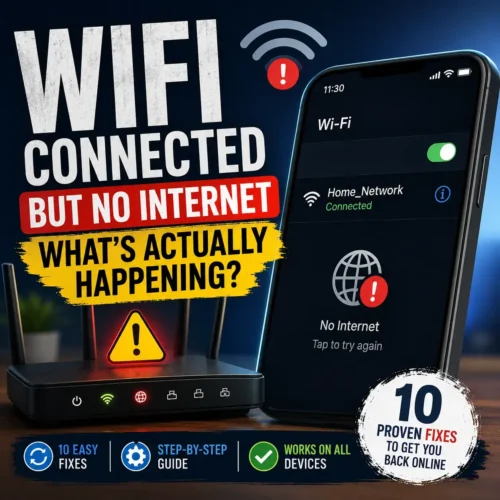
This is one of the most frustrating tech problems you can run into. Every single bar is showing. The WiFi name is there. Your phone says “connected.” And yet — nothing loads. The page just spins forever.
The real issue here is a common misconception: we instinctively assume that a “connected” status means our data is actively flowing. It doesn’t. When your device pairs with WiFi, it is merely establishing a local link with your router—that little plastic box sitting on your desk or mounted to the wall. Accessing the actual internet requires an entirely separate step. Your router still has to bridge the gap to your ISP’s network, pull a valid IP address, and successfully pass data back and forth. The whole sequence needs to work flawlessly. When a single link in that chain snaps, you wind up with full signal bars but zero data.router https://fusionshub.com/how-to-keep-your-wifi-router-on-during-a-power-outage
What makes troubleshooting this so annoying is that completely different network bugs produce the exact same symptom. A broken DNS configuration looks identical to a total backend server outage. Similarly, a local IP routing conflict behaves just like a glitch in your router’s internal software, and aggressive device power-saving settings can easily mimic a dead connection.
The good news is that almost all of these hiccups can be sorted out without spending a single dime. If you work through these 10 solutions step-by-step, you’ll likely get back online well before running out of options.
Fix 1 — The Proper Router Restart (Most People Do This Wrong)
Before anything else. Before any settings. Before calling your ISP.
Pull the power plug from your router. Do the same for your standalone modem if you have one. Keep both devices entirely powered down for a full 60 seconds. Avoid cutting corners with a quick 10 or 30-second restart; give it a whole minute.
The science behind this is simple: routers rely on internal capacitors that retain electrical energy for a short period after you cut the power. If you don’t wait long enough, the device’s temporary memory won’t actually clear out. A 60-second break ensures everything drains completely.
When it’s time to boot things back up, start with the modem. Wait a couple of minutes until its panel lights settle down and show a steady connection. Only then should you plug the router back in. This sequence is crucial because the router needs to detect an active, live internet feed from the modem the exact moment its software loads up.
A systematic reboot like this clears out stuck system scripts and refreshes your ISP lease, which instantly handles the vast majority of connectivity drops. If your hardware has been running non-stop for weeks, try this first—you might not even need any of the deeper fixes.
Fix 2 — Check If It’s Only Your Device or Every Device
This step tells you where the problem actually lives, which saves you from fixing the wrong thing entirely.
Pick up another gadget—whether that’s a smartphone, a spare laptop, or a tablet hooked up to the exact same wireless network. Fire up a browser tab and try loading any random site.
If that secondary device browses perfectly fine, the issue is isolated to your primary hardware. Go straight to Fix 6, Fix 7, and Fix 8, as those deal with client-side bugs.
If every single device fails to fetch data, the glitch is originating from your router or your service provider’s external lines. Keep reading from Fix 3 onwards.
If you notice a mixed situation where some electronics work but others fail, you’re almost certainly looking at an IP assignment clash, which we tackle directly in Fix 4.
One minor detail that frequently trips people up: make sure to check if your connection is failing globally or just on a single platform. Sometimes an isolated server crash makes it seem like your whole setup is broken. Try switching between Google and an independent tracker like Cloudflare Radar to see if there is a global outage. If one opens up while the other hangs, your local setup is completely fine.
Fix 3 — Restart Your Modem Separately
Most people treat the modem and router as one thing. They’re not, and this distinction matters for this fix.
Your modem serves as the direct link to your service provider’s physical connection—the actual wire entering your premises. The router simply takes that incoming signal and broadcasts it to your local gadgets over the air. They can be two independent units or built into a single hybrid gateway box.
If you have two individual units, try power-cycling the modem on its own. Disconnect its power line, wait out a full minute, and hook it back up. Allow it ample time to re-authenticate with the main provider network. You’ll know it’s ready when its WAN or sync light turns solid. Once that’s done, give your router a quick restart too.
Modems can occasionally get stuck in a false loop where they display a connection status but fail to route data. Forcing a hard reset makes the hardware re-verify its network credentials from scratch. This basic step fixes a shocking amount of persistent outages that users assume are major backend failures.
If you run into this exact loop multiple times a week, your physical modem might be failing, especially if it’s an older model provided by your ISP years ago. It might be worth asking your provider to send over a technician to inspect the physical line for signal noise. Poor line quality triggers sudden drops that mimic hardware failure.
If your router keeps losing power due to grid failures or unstable electricity, check out our detailed network layout blueprint on Why Does My WiFi Keep Disconnecting? 6 Real Fixes — it covers power-related infrastructure issues in detail.
Fix 4 — Flush DNS and Release/Renew IP Address
This sounds technical but it takes about 90 seconds and fixes a genuinely common cause of no-internet errors.
The DNS network acts as a directory that maps human-readable links like google.com into numerical IP routes that computer chips can read. When this internal directory file gets corrupted or scrambled, your machine won’t know how to reach a webpage, even if your underlying data stream is perfectly active.
On Windows: Launch the Command Prompt with elevated administrative privileges (type “cmd” in your search bar, right-click the icon, and pick “Run as administrator”). Input these three instructions sequentially, hitting Enter after each line:
DOS
ipconfig /flushdns
ipconfig /release
ipconfig /renew
The initial command wipes away bad address logs. The second drops your machine’s current network lease, and the final line forces the router to hand over a brand-new IP configuration. For more advanced operating system troubleshooting, you can check out the official Microsoft Support portal.
On Android: Navigate through Settings → WiFi → select your current network name → choose Forget. After that, pick the network again and re-enter your security key. This forces your mobile software to build a fresh connection profile from scratch.
On iPhone: Head into Settings → WiFi → click the small (i) button right next to your active network name → press Renew Lease. This instructs your iOS software to request a clean IP configuration from your local router without forcing you to re-type your password.
This is one of the most overlooked fixes for wifi connected but no internet and it’s completely free and takes no technical knowledge.
Fix 5 — Change Your DNS Servers
Your router is almost certainly using your ISP’s DNS servers by default. These work most of the time. But they’re often slower than alternatives, and occasionally they go down or return errors — which kills your ability to load websites even though your actual internet connection is working fine underneath.
Swapping out these server values is one of the quickest ways to optimize a flaky setup. It costs nothing, takes just a couple of minutes, and routinely improves your overall loading speeds alongside network stability.
The two most reliable public options are Cloudflare 1.1.1.1 (famed for low latency and privacy) and Google Public DNS (known for global uptime).
To change on your router (affects every device on the network at once): Type 192.168.1.1 or 192.168.0.1 into your address bar, log into your admin dashboard, look for the WAN or DNS configuration submenu, and update the DNS boxes to 1.1.1.1 (Primary) and 8.8.8.8 (Secondary). Apply changes and let the hardware reboot.
To change on Windows only: Go to Settings → Network → Change adapter options → right-click your WiFi connection → Properties → Internet Protocol Version 4 → Use the following DNS server addresses → enter 1.1.1.1 and 8.8.8.8.
People are often genuinely surprised at how much faster and more stable their internet feels after this simple change. It doesn’t cost anything and takes about five minutes.
Fix 6 — Turn Off VPN or Proxy (Including the Ones You Forgot Were On)
This one catches people off guard more than you’d expect.
Privacy tools like VPNs and proxy configurations send your web traffic through external remote servers. If those remote nodes experience a crash, a spike in user load, or a software configuration bug, your browser traffic hits a wall. Your local WiFi connection will report a perfect status, but nothing actually opens because the secure tunnel itself is broken.
Take a look at your device status bar to see if a background security app is active. Many users open a VPN for a quick task and completely forget it’s running in the background.
Shut the application down completely and see if your pages load. If they do, your VPN provider was simply having a bad day. You can either pick a different virtual location or keep the app paused while you browse.
Similarly, check your phone’s network configuration panel under the Proxy submenu. If you notice a manual entry that you didn’t deliberately add yourself, switch that setting back to “None.”
On Windows, head to Settings → Network → Proxy and verify that the toggle for using a manual proxy server is turned off.
Fix 7 — Check If Your Device’s IP Address Is in Conflict
Every device on your network needs a unique IP address. When two devices accidentally get assigned the same one — which happens more often than you’d think, especially when devices go offline and come back — neither one works properly. You get connected to WiFi but no internet access.
The quickest path past this glitch: kill the WiFi connection on the misbehaving device, give it a 30-second break, and toggle the radio back on. When the system attempts to hook back onto the network, it should pull a completely unique address from the router.
If that doesn’t clear the error, pull up your router’s client list from your browser and check for matching address numbers. A quick system reboot of the router itself will force it to flush its assignment tables and give everyone a unique slot.
For a permanent fix, you can use your router’s admin panel to bind a specific device to a permanent address (often listed as Static IP or DHCP Reservation). This blocks any address overlaps from happening down the road.
Fix 8 — Update or Roll Back Your Network Adapter Driver
This one applies specifically to Windows laptops and is more common than most people know.
Automated system updates occasionally deploy buggy wireless card drivers, or swap out perfectly tuned manufacturer files for generic variants. If a sudden connection loss catches you right after a recent OS update, this driver mismatch is the prime suspect.
Right-click your Start button, navigate to Device Manager, expand Network Adapters, right-click your wireless card, and pick Update Driver followed by “Search automatically.”
If that step brings no relief, right-click the same adapter, go to Properties, open the Driver tab, and choose Roll Back Driver. This restores the system back to the older version that was handling your data perfectly.
While you are messing with those configuration properties, look at the Power Management tab. Clear the checkmark next to “Allow the computer to turn off this device to save power.” This stops Windows from turning off your wireless chip when you are running on battery, which frequently prevents sudden drops.
Fix 9 — Update Your Router’s Firmware
Hardware brands publish system updates quite regularly to patch security gaps, iron out code glitches, and boost wireless processing. An older model running vintage code can easily develop software bugs that didn’t exist out of the box simply because its old programming struggles with modern web traffic demand.
Log into your router’s management page (using the address on the device sticker), locate the Firmware or System Tools menu, and run a check for new code packages. If an update is waiting, let it run its course. Your router will restart on its own to apply the new system files.
This quick process takes less than five minutes and often clears up persistent drops on units that have been active for a year or two. As a side benefit, it keeps your home network safe from modern exploits.
While you are looking around the admin dashboard, make sure your DHCP Server setting is active. This is the background tool that hands out addresses to your family’s electronics. If it gets turned off accidentally, devices can’t get proper IP configurations, causing the exact dropout problem you are facing.
Fix 10 — Reset Network Settings (Last Resort Before Calling ISP)
If you’ve tried everything above and still have wifi connected but no internet, a full network settings reset is the next step before involving your ISP.
On Windows: Head to Settings → Network → Network Reset. This action uninstalls and reinstalls your physical network hardware, clearing out all custom networking values. You’ll have to re-enter your saved WiFi keys later, but it wipes away deep software glitches that might be blocking your data.
On Android: Go to Settings → General Management (or System) → Reset → Reset Network Settings.
On iPhone: Tap into Settings → General → Transfer or Reset → Reset → Reset Network Settings.https://fusionshub.com/why-is-my-phone-charging-slow
⚠️ Important: Make sure you choose the network reset option specifically. Do not run a full factory reset on your mobile device, as that will erase your actual files and photos. A network reset only targets saved connection profiles, Bluetooth pairings, and local VPN setups.
Once the reset wraps up, log back onto your wireless network to check the stream. If things still refuse to load, the issue is almost certainly a line fault out on your street or a backend breakdown with your provider.
When It’s Your ISP and Not Your Equipment
You’ve tried all 10 fixes. Everything looks right on your end. Still no internet.
Here’s the definitive test: take a laptop, get an ethernet cable, and plug it directly from the cable into your modem, completely bypassing the router. Open a browser. If you have internet on a direct wired connection — the problem is with your router specifically. If you still have no internet on the direct wired connection, the problem is your ISP’s line or their equipment.
When you call up your provider, give them the exact details instead of just saying your connection is broken. Tell the representative: “I have power-cycled the physical modem and router, checked across multiple devices, and verified that a hardwired Ethernet line straight to the modem still yields zero data.” This clear info signals to their tech team that the problem is a physical line fault on their side, skipping the basic troubleshooting scripts entirely.
Ask their support desk to run a formal line diagnostic rather than a standard bandwidth test. Line diagnostic scans look for signal attenuation, background line noise, and verification drops that standard tests skip right over. These subtle drops are usually behind connections that randomly cut out throughout the day.
It is also smart to take a quick peek at your provider’s social channels or status boards before calling. Often, you’ll find a localized fiber cut or neighborhood maintenance window is already being worked on.
What If the Problem Keeps Coming Back?
A one-time fix is great. But if wifi connected but no internet keeps happening every few days, there’s an underlying cause that needs addressing, not just patching.
The most frequent culprits behind recurring drops include an aging modem box that requires replacement, a loose drop cable somewhere outside your house, or erratic electrical currents that screw with your router’s configuration data. In spots with unstable electrical grids—where quick brownouts or voltage drops are common—routers can drop their active data sessions or run silent reboots.
If unstable electricity is messing with your setup, check out our highly popular guide on How to Keep Your WiFi Router On During a Power Outage. A small dedicated router backup battery or a specialized 12V mini-UPS bridges the gap during quick line fluctuations. It’s an incredibly practical solution for keeping your wireless steady in areas with challenging power infrastructure.
For all your charging needs when power is unpredictable — getting your devices powered up quickly before electrical cuts hit — you want to ensure your hardware is safe. Check out our comprehensive piece on Fast Charging Battery Damage — Is Your Charger Safe? to learn how high-quality tech gets a phone from nearly empty to usable in under 20 minutes without frying your internal cells. Also, avoiding cheap knockoffs is critical; feel free to read through our Original vs Fake Charger — Real Danger Buying Guide to keep your devices running smoothly.
For staying connected and productive when you can’t sit at a desk, the M10 Wireless Earbuds and Pro 2 Wireless Earbuds give hours of call time without needing power. If you prefer over-ear for longer work sessions, the P9 Wireless Headphones hold charge well and deliver solid audio quality.
The Difference Between “No Internet” and “WiFi Keeps Disconnecting”
These look similar but they’re caused by different things and need different fixes.
WiFi connected but no internet means your device is connected to the router, but the router can’t reach beyond your home. The local connection is fine. The ISP link is broken somewhere.
WiFi disconnecting means your device is losing its connection to the router entirely. The wireless link itself is dropping.
If your issue is actually WiFi dropping rather than connected-but-no-internet, our full breakdown of Why Does My WiFi Keep Disconnecting? 6 Real Fixes covers that problem specifically — including fixes for channel congestion, 5GHz vs 2.4GHz band switching issues, router placement, and power-saving settings that cut the WiFi adapter off between uses. If you find yourself facing device slow-downs or bottlenecks, you can also explore our companion guide on Why Is My Phone Charging Slow? or gather layout inspiration from our Best Budget Desk Setup Ideas 2026 and Smartwatch Battery Life Tips — 7 Hacks to Save Power.
Related Reading From FusionsHub
One thought on “WiFi Connected But No Internet — 10 Fixes That Actually Work”