

Why Is WiFi Slow on Phone But Fast on Computer? Fix It Now

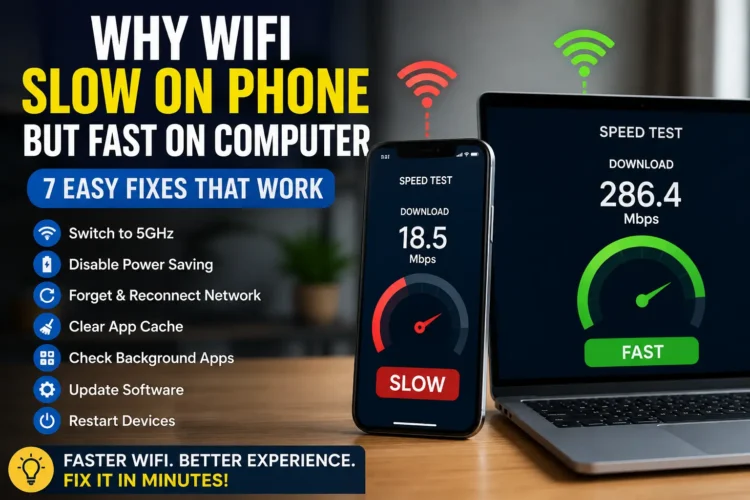
The most common reason is your phone is connected to the slower 2.4GHz band while your computer is on the faster 5GHz band. Other causes include power saving mode throttling your WiFi, too many apps running in background, or outdated phone software.
Full bars only means your phone has a strong signal to the router — not that the connection is fast. You could be on a congested 2.4GHz channel, sharing bandwidth with too many devices, or your router itself may have a slow connection to the internet.
Yes — when power saving mode is active, your phone deliberately throttles the WiFi adapter to save battery. This reduces both speed and responsiveness. Turn off power saving mode and retest your speed — most people see an immediate improvement.
Table of Contents
The Real Reason WiFi Slow on Phone But Fast on Computer Happens
Your phone and your laptop connect to WiFi in ways that look identical on the surface but are actually quite different underneath.Because wifi slow on phone but fast on computer.
Most laptops, when they first connect to a router, grab onto the 5GHz band. It’s faster, less congested, and when you’re sitting close to the router it’s usually the dominant signal. Your laptop connected to it once, saved that preference, and has been using it ever since.
Phones are different. Older phones, phones in power saving mode, and phones that connected from further away often end up on the 2.4GHz band instead. 2.4GHz travels further and looks stronger in terms of signal bars — but it’s slower. It has less available bandwidth and it shares frequency space with microwaves, baby monitors, and every neighbor’s WiFi network within range.
So your laptop is cruising on 5GHz and your phone is slugging along on 2.4GHz. Same router. Same network name. Completely different experience.
That’s the most common cause. But not the only one. Phones also have physically smaller WiFi antennas than laptops — less space inside the device means less antenna hardware, which means weaker actual signal reception even when the bars look the same. And phones run background processes, power saving features, and app caches that laptops don’t deal with in the same way.
The good news is that most of these are fixable in a few minutes without touching anything complicated.wifi slow on phone but fast on computer
Before Anything Else — Actually Test the Speed Difference
People assume their phone WiFi is slow based on how things feel. Sometimes that feeling is accurate. Sometimes a specific app is just being slow and the WiFi is actually fine. thats why wifi slow on phone but fast on computer became a problem for us .
Worth confirming before you start changing settings.
Open Speedtest by Ookla on your phone and run a test. Then open the same site on your laptop and run the same test. Do both from roughly the same spot in the room and note the numbers.
If speeds are within about 20-30% of each other — the WiFi itself isn’t really the problem. Something specific like an app cache or a background process is probably what’s making things feel slow. Skip ahead to Fix 4.
If your phone is getting half the speed your laptop is getting, or worse — that’s a real difference and the fixes below address it directly.
While you’re checking, look at wifi slow on phone but fast on computer which band your phone is actually connected to. On iPhone you can sometimes find this under Settings → WiFi → tap the network name. On Android it’s under WiFi settings → tap the network → look for frequency information. If your phone says 2.4GHz and your laptop is on 5GHz, that’s almost certainly the entire explanation right there.
WiFi Slow on Phone But Fast on Computer — Fix 1: Get Your Phone on 5GHz
This one fix solves it for most people. Everything else is worth knowing but start here.
The problem is that your router is probably broadcasting both bands under the same name. Your phone connected to whichever one had a stronger signal at the time — often 2.4GHz — and has stuck with it ever since. It doesn’t automatically switch to the faster band later.
Here’s what to do. Log into your router’s admin panel — type 192.168.1.1 or 192.168.0.1 into your browser, use the username and password printed on the back of the router. Find the WiFi settings and give the two bands different names. Something like “HomeWiFi_5G” and “HomeWiFi_2.4G” works fine. Save the settings.
Now on your phone, forget whichever network you’re currently connected to. Go into available networks, find the 5GHz one specifically, and connect to it. That’s it.
If you’re close enough to the router for 5GHz to work well, the speed jump is immediate and obvious. According to Cisco’s wireless documentation, 5GHz can deliver speeds several times higher than 2.4GHz under similar conditions — which explains perfectly why your laptop felt so much faster on the same network.
Fix 2 — Turn Off Power Saving Mode
This one is sneaky because most people don’t connect power saving to WiFi speed. They feel like completely separate things. They’re not.
When your phone drops into battery saver mode — either because you turned it on manually or because battery dropped below 20% and it kicked in automatically — it starts throttling things to reduce power consumption. One of those things is the WiFi adapter. The phone literally reduces how hard the adapter works to maintain and use the connection. That shows up as slower speeds and higher latency.
You can be on a great WiFi connection with full bars and still have slow internet because your phone is deliberately going easy on the antenna to save battery.
On Android the setting is somewhere in Settings → Battery — look for Power Saving, Battery Optimization, or similar. Turn it off or at minimum raise the threshold so it only kicks in at 10% rather than 20%.
On iPhone it’s Settings → Battery → Low Power Mode. Simple toggle.
Turn it off, run the speed test again immediately. If the number jumps — that was your problem.
Fix 3 — Forget the Network and Reconnect Fresh
Your phone remembers WiFi networks it’s connected to before. Along with the password it saves IP address information, DNS data, authentication details. Over weeks and months that saved data can get stale or corrupted. The result is a connection that technically works but doesn’t perform the way it should.
The fix is straightforward. Forget the network entirely and reconnect from scratch.
On iPhone: Settings → WiFi → tap your network name → Forget This Network. Then find it in the list, tap it, enter the password.
On Android: Settings → WiFi → long press your network or tap it → Forget. Reconnect.
When you reconnect fresh the phone gets a clean IP address from the router, clears all the cached connection data, and starts completely fresh. Sounds too simple but this fixes a surprising number of gradually-worsening slow WiFi situations — especially ones where things got worse over time rather than suddenly.
Fix 4 — The Problem Might Be a Specific App, Not WiFi
Run the speed test and found your phone WiFi is actually fast? Then something is slow but it isn’t the WiFi.
Individual apps store cached data locally — images, videos, login sessions, pre-loaded content — to make things feel faster. When that cache gets large or fragmented, it works against you. Apps start taking longer to load things than they would on a fresh install. YouTube, Instagram, Chrome, and TikTok are the worst offenders because they cache a lot of media content.
On Android: Settings → Apps → pick the app → Storage → Clear Cache. Not Clear Data — just cache. You keep your login and settings.
On iPhone the process is slightly different because iOS doesn’t expose cache clearing the same way. Best option is to offload the app — Settings → General → iPhone Storage → tap the app → Offload App. Then reinstall from the App Store. This clears the cache without wiping your account data.
Do this for the two or three apps that feel slowest. The improvement in load time is usually noticeable immediately.
Fix 5 — Too Many Devices Are Eating Your Bandwidth
Your internet plan delivers a fixed total amount of bandwidth. When fifteen devices share it simultaneously, each gets a fraction of what’s available. Your laptop might feel fast because it happened to be the most active device at that moment. Your phone feels slow because it’s competing with everything else.
Log into your router admin panel and pull up the connected devices list. Count how many are actually on your network right now. Smart TVs, streaming sticks, security cameras, smart speakers, old phones that haven’t been disconnected — they all add up. Kick off anything that doesn’t need to be there.
Also think about what’s happening in the background. A cloud backup running on someone’s laptop, a game update downloading on a console, a security camera continuously uploading footage — these can consume a significant chunk of available bandwidth without anyone noticing. Pausing them immediately frees up speed for your phone.
If your router has QoS settings, set your phone as a high priority device. The router will protect its bandwidth share even when the network is busy.
Fix 6 — Check for a Software Update on Your Phone
Phone manufacturers push WiFi-related fixes through software updates fairly regularly. An outdated phone can be running with known WiFi performance bugs that were fixed months ago in an update nobody installed.
Settings → General → Software Update on iPhone. Settings → Software Update or About Phone → System Update on Android.
If there’s an update available, run it. WiFi improvements get buried under “general performance improvements” in the patch notes and don’t get advertised loudly — but they’re real. Apple’s iOS release notes have repeatedly listed specific WiFi fixes in minor point updates that dramatically improved performance for affected devices.
Fix 7 — Nuclear Option: Reset Network Settings
Nothing above worked? Time to wipe everything and start clean.
A network settings reset clears all saved WiFi networks, passwords, DNS configuration, IP settings, VPN setups — everything. The phone’s network stack goes back to factory defaults. Problems that individual fixes don’t reach get wiped along with everything else.
On iPhone: Settings → General → Transfer or Reset iPhone → Reset → Reset Network Settings.
On Android: Settings → General Management → Reset → Reset Network Settings.
You’ll lose all saved WiFi passwords and need to reconnect everything manually. Worth it if you’ve tried everything else and the phone is still slow — whatever was causing it is gone now.
When It’s the Router Treating Your Phone Differently
Sometimes this isn’t a phone problem at all. Some routers apply per-device settings — bandwidth limits, parental controls, QoS rules — to specific devices based on their MAC address. If your phone’s MAC address has a speed limit applied that your laptop doesn’t have, you’ll see exactly this symptom. Fast laptop, slow phone, identical network.
Log into the router admin panel and look through QoS settings, device management, and parental controls for anything applied to your phone specifically. Most people never intentionally set these but they can be configured accidentally or inherited from a previous router setup.
Also look for band steering settings. Some routers actively push certain device types to specific bands. If the router is forcing your phone to 2.4GHz while allowing your laptop on 5GHz — disabling band steering and managing the connections manually fixes it immediately.
And if your WiFi is dropping entirely rather than just being slow — that’s a different problem covered in our full guide on why does my WiFi keep disconnecting. Same frustration, different cause, different fixes.
Keep Your Phone Charged to Keep WiFi Fast
One thing that feeds directly back into Fix 2 — a phone that’s always running low on battery is a phone that’s frequently in power saving mode, which means frequently throttled WiFi. It becomes a cycle.
The OnePlus 65W Warp Charger gets a phone from nearly dead to a comfortable charge in under 20 minutes. Spending less time at low battery means spending less time in power saving mode — which means WiFi stays at full speed more consistently throughout the day. It’s a connection most people don’t make but it’s a real one.
If internet reliability at home is a broader problem, our guide on how to keep your WiFi router on during a power outage covers router-side reliability from a different angle — worth reading if slow WiFi is part of a bigger connectivity pattern.
Related Reading From FusionsHub
- Why Does My WiFi Keep Disconnecting? 6 Real Fixes
- WiFi Connected But No Internet — 10 Fixes
- How to Keep Your WiFi Router On During a Power Outage
- Why Is My Phone Charging Slow?
- iPhone 16 Charging Issues
- Fast Charging Battery Damage — Is Your Charger Safe?
- Original vs Fake Charger — Real Danger Buying Guide
People Also Ask
Why is my WiFi slow on my phone but fast on my computer? Almost always because your phone is on the 2.4GHz band and your computer is on the faster 5GHz band — even though they’re on the same router and same network name. Other causes include power saving mode throttling your phone’s WiFi adapter, stale cached connection data, or the phone’s smaller antenna getting a weaker real-world signal despite showing full bars.
How do I fix slow WiFi on my phone only? First check which band your phone is connected to and switch to 5GHz if possible. Turn off power saving mode and retest. If speed improves on the test but specific apps still feel slow — clear the cache on those apps. If nothing works, forget the network entirely, reconnect fresh, and check for software updates.
Why does my phone show full WiFi bars but still load slowly? Signal bars measure how strong the connection to your router is — not how fast the internet is. Full bars on 2.4GHz is still slower than fewer bars on 5GHz. You can also have a strong connection to the router while the router itself has a slow or congested connection to the internet. Run an actual speed test rather than going by the bar display.
Does low battery or power saving mode slow down WiFi on a phone? Yes — this is one of the most overlooked causes of slow phone WiFi. Power saving mode deliberately throttles the WiFi adapter to reduce battery drain. Turn it off and run a speed test immediately after. Most people who find this is their issue see a significant speed jump within seconds of disabling it.
Why is my iPhone WiFi slower than my laptop on the same network? iPhones have smaller physical antennas and may have connected to 2.4GHz instead of 5GHz. Also check Low Power Mode under Settings → Battery — if it’s on, it’s throttling WiFi. Turn it off, separately name your router’s 5GHz network, and connect your iPhone to that specifically. These two steps together fix the majority of iPhone-slower-than-laptop situations.
Slow phone WiFi is annoying but almost never permanent. Start with the band check and power saving fix — most people don’t need to go further than Fix 2 to solve it completely.
One thought on “Why Is WiFi Slow on Phone But Fast on Computer? Fix It Now”